
Where Was I? / Mac workspace guides
Practical guides for interrupted work
How to switch projects without losing your place on a Mac
Leave one project ready for your next return.
Coming soon · Free to try at launch. Get notified →
Save a stopping point before you switch
Before opening the next project, leave the current one in a state you can recognise. Save your documents, capture the workspace and write the next action. That gives you a return point even if you spend the rest of the day elsewhere.
A useful checkpoint answers three questions: what was I working on, what did I decide, and what should I do next?
A short handover to your future self
- Save changes inside your apps. Make sure documents and other work are saved before leaving.
- Choose a clear stopping point. Finish the sentence or note which part is incomplete.
- Write down the decision. For example: “Use the shorter introduction; keep the longer version for the FAQ.”
- Name the next action. “Write the first FAQ answer” is easier to act on than “Continue website.”
- Keep the relevant windows and tabs together. Leave a recognisable workspace to capture.
You can do this with a written note and a screenshot. Where Was I? puts the return context and saved workspace together in a project checkpoint.
Use a checkpoint for each project
In Where Was I?, select the project you are leaving and choose Save checkpoint. Save the workspace while its apps, tabs and windows still represent the work. Add the context note and next step before switching your attention.
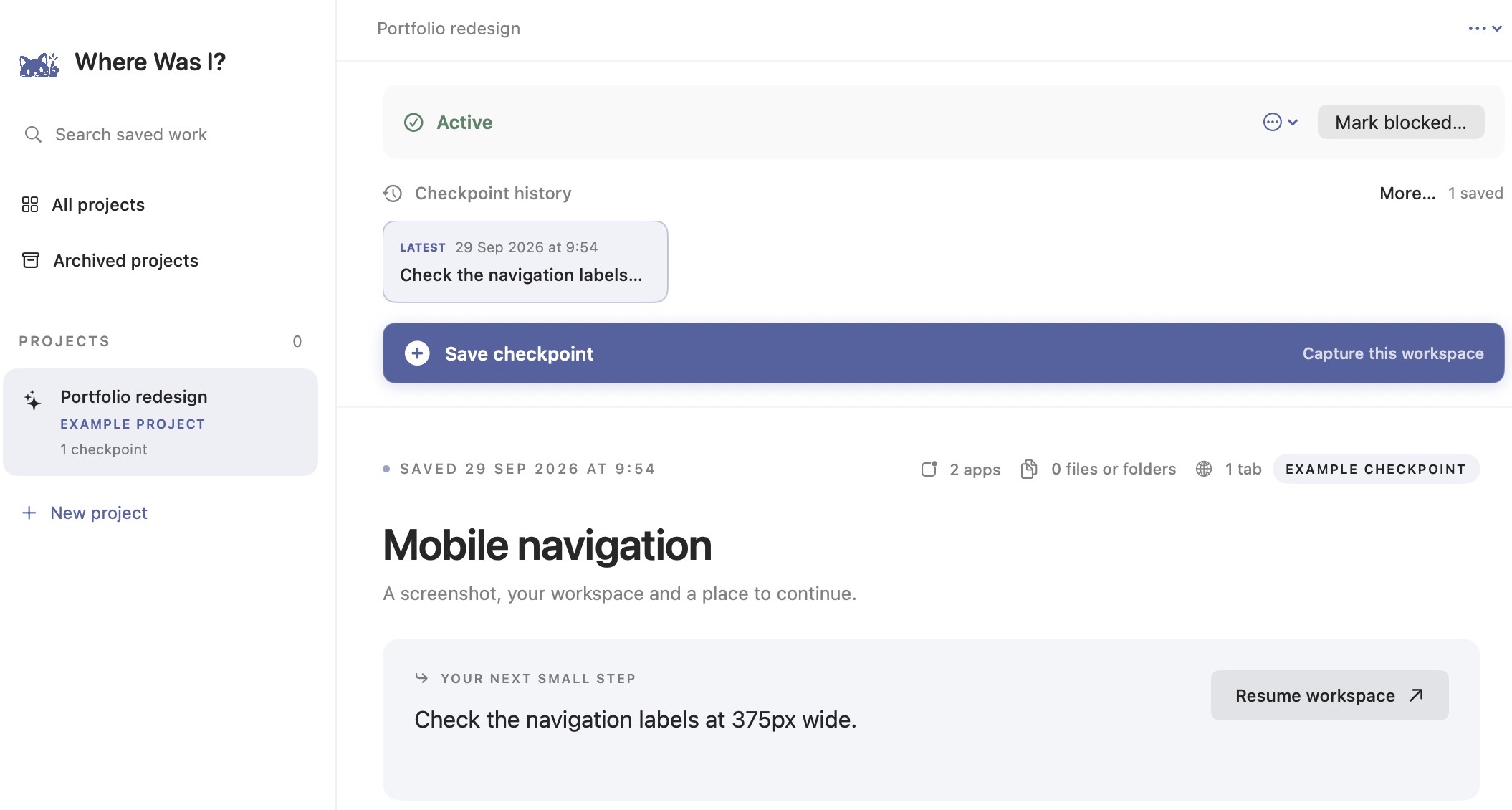
Then move to your other project. When you are ready to return, select the original project and the checkpoint that represents your stopping point. Read its context, then select Resume workspace. Review the proposed apps and pages before choosing Resume selected items.
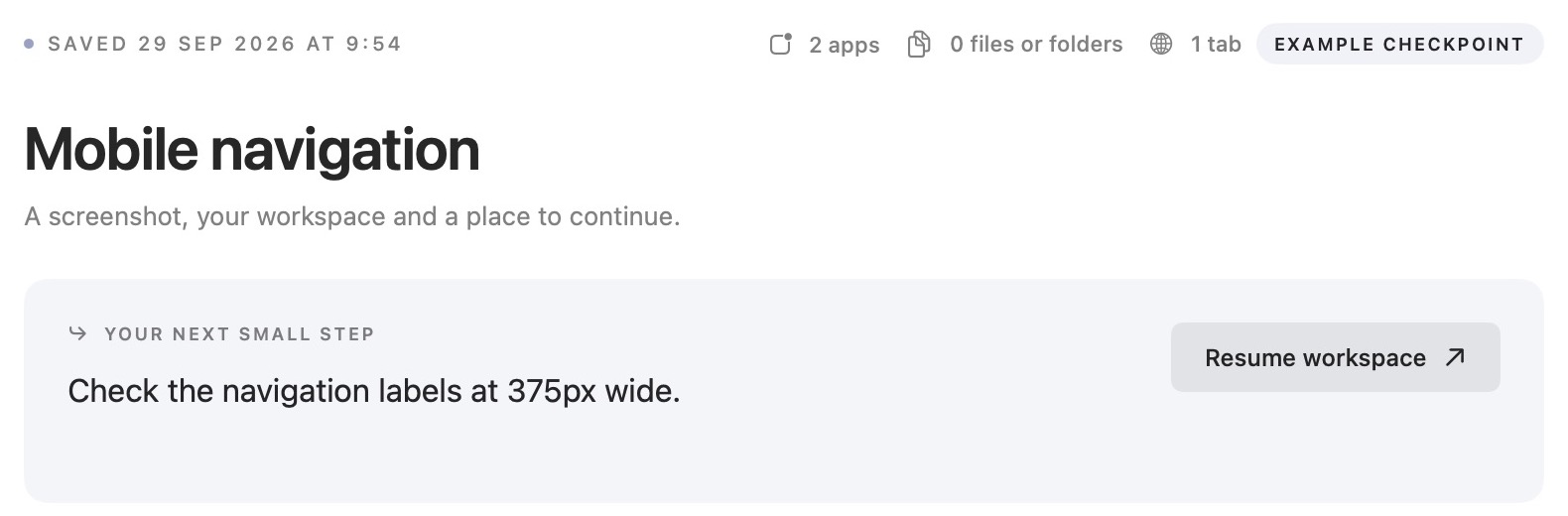
Example: leave a website review and return to writing
You have a draft in one window, the preview in another and reference pages in your browser. Before a meeting, leave a checkpoint saying: “Introduction approved. Next: replace the second screenshot and check its caption.”
After the meeting, you can review the saved workspace and the next step together. You do not have to infer the task from a row of open windows.
A checkpoint is a saved return point, not a promise that every app’s internal state or unsaved document will be restored. Save documents in their own apps and put any important file location or unfinished detail in your note.
If arranging the windows is your main concern, start with saving window positions. For help writing the handover itself, try a better return checkpoint.