
Where Was I? / Mac workspace guides
Practical guides for interrupted work
How to save and restore window positions on a Mac
Keep a useful layout ready to return to.
Coming soon · Free to try at launch. Get notified →
Save the arrangement before you need it again
If you want to return to a particular arrangement of windows, save it while everything is in place. A screenshot gives you a visual reference; a workspace checkpoint can also keep the apps, tabs and window positions associated with that moment.
In Where Was I?, the checkpoint belongs to a project. That means your layout can sit alongside a note about what you were doing and the next action to take.
Bring your working layout back
A website preview, a design canvas and a launch board: save the layout you want to return to, then resume your checkpoint when you need it.
What to try with macOS first
If your main problem is windows disappearing when you quit an app, open System Settings → Desktop & Dock and check Close windows when quitting an application. Turning it off lets supporting apps reopen their previous windows. When restarting, the Reopen windows when logging back in option controls reopening at login.
Those settings concern reopening windows. For a particular project arrangement that you want to revisit later, use the checkpoint workflow below.
Mac settings reference: Apple’s explanation of reopening apps and windows.
Save and return to a layout with Where Was I?
1. Leave a checkpoint before you switch away
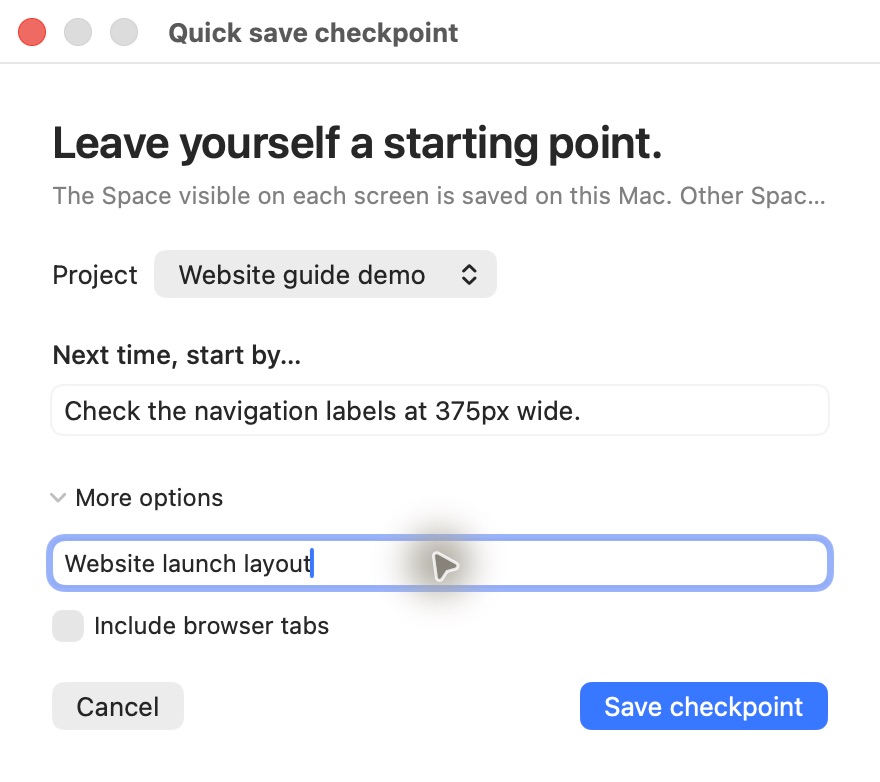
Arrange your apps and browser windows for the task, then choose the project in Where Was I? and select Save checkpoint.
Write one next action, such as “Compare the two pricing options in the browser.” Expand More options to add a title and choose whether to include browser tabs.
Complete any screen-access setup the app requests, then select Save checkpoint. The form keeps the project and next step together.
2. Review the workspace when you return
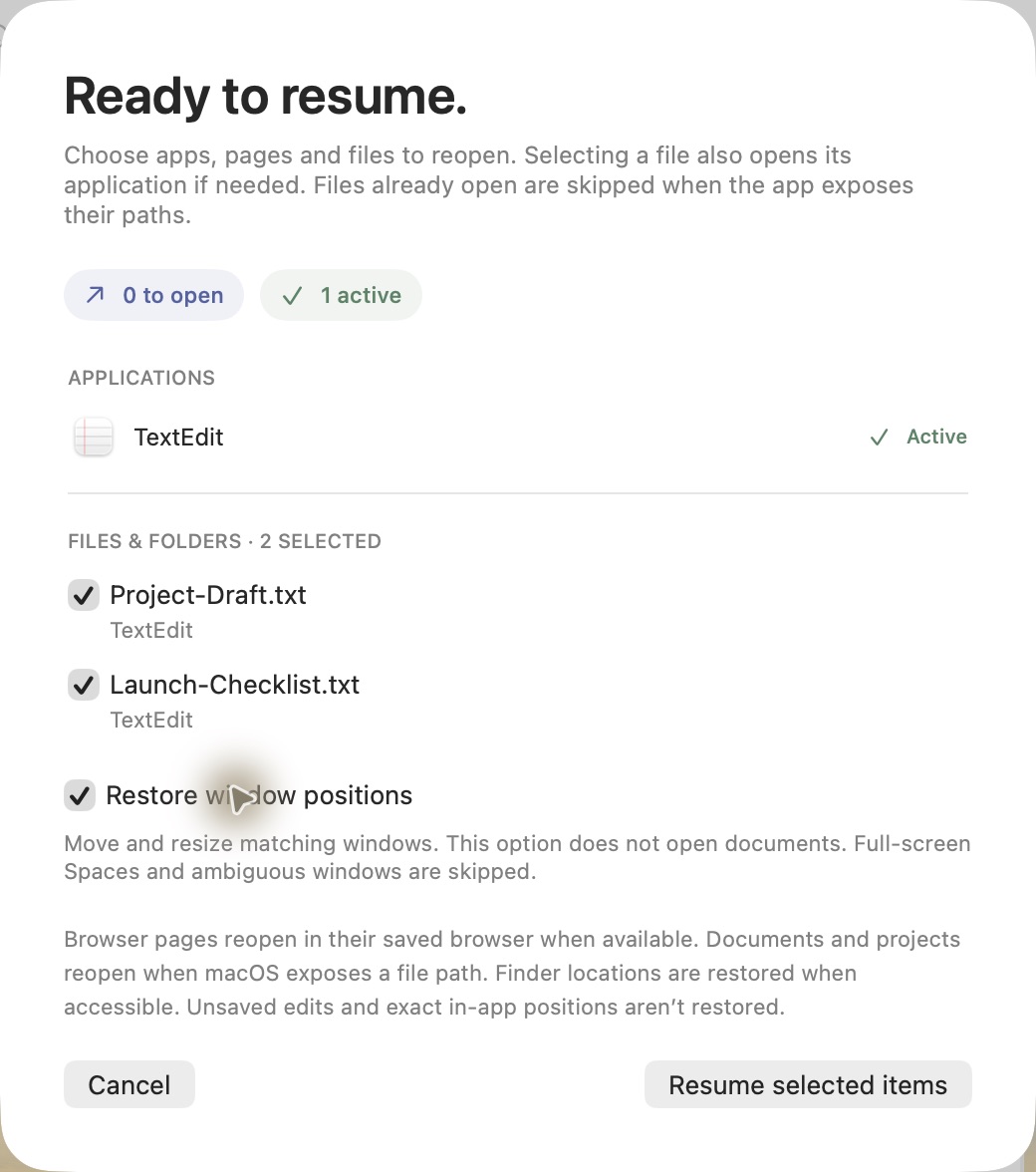
Open the saved checkpoint and read the next step. Select Resume workspace (or Review workspace when everything is already active) to see what is already active and what can be reopened.
Choose the items you need and enable Restore window positions when you want to move matching windows back. Then select Resume selected items. Apps and documents that are already open can stay open while their matching windows move back.
Window positions: saving covers the Space visible on each display. Other Spaces and full-screen Spaces are excluded. Moving matching windows during resume requires Accessibility access.
Bring back the reason for the layout, too
A browser beside a document tells you where you were working. A note saying “Check the figures in the second table” tells you how to continue. Save both while the task is still fresh.
In our capture session, position restoration worked, while resizing windows that had been tiled by macOS was inconsistent. Test your own apps and layout before relying on exact size restoration.
For your first checkpoint, use a small workspace on the display setup you normally work with. Reopen it and check how your particular apps behave before relying on it for a larger setup. A saved workspace does not replace saving changes inside your documents.
If windows move when your laptop wakes, follow the sleep and monitor troubleshooting guide before restoring the checkpoint.