
Where Was I? / Mac workspace guides
Practical guides for interrupted work
Mac windows move after sleep? What to try
Get the display working, then recover your place.
Coming soon · Free to try at launch. Get notified →
Check the display before rearranging every window
If you wake your Mac and find windows on the wrong screen, first check whether the external display has been recognised. Restoring a layout is easier once the screens you intend to use are connected and available.
There are two jobs here: getting the display connection working and bringing your work back into a useful arrangement. A saved checkpoint helps with the second; it does not repair a display connection.
Bring your working layout back
After checking your display connection, you can manually restore a layout saved before your break. Here is how that save-and-resume workflow works.
Try these checks after waking your Mac
- Check the screen and connection. Confirm the external display is on and the cable or adapter is securely connected.
- Open System Settings → Displays. Check that the expected displays appear and that you are using the intended extended or mirrored setup.
- Detect a missing display. Hold Option in Displays to reveal Detect Displays, then select it.
- Reconnect if needed. If the display is still missing, try disconnecting and reconnecting it before moving all your windows manually.
These checks follow Apple’s external display guidance. Consult your display or dock manufacturer if the connection keeps dropping.
Prepare a checkpoint before your next break
Once your workspace is working again, save a reference you can return to. In Where Was I?:
- Open the project and arrange the apps and windows you need.
- Select Save checkpoint while the workspace is in a useful state.
- Add a short note and next step, so you can resume the task as well as the arrangement. Complete any requested screen-access setup and finish saving.
- After your next break, reconnect the intended displays and open that checkpoint.
- Select Resume workspace, review what will open, then choose Resume selected items.
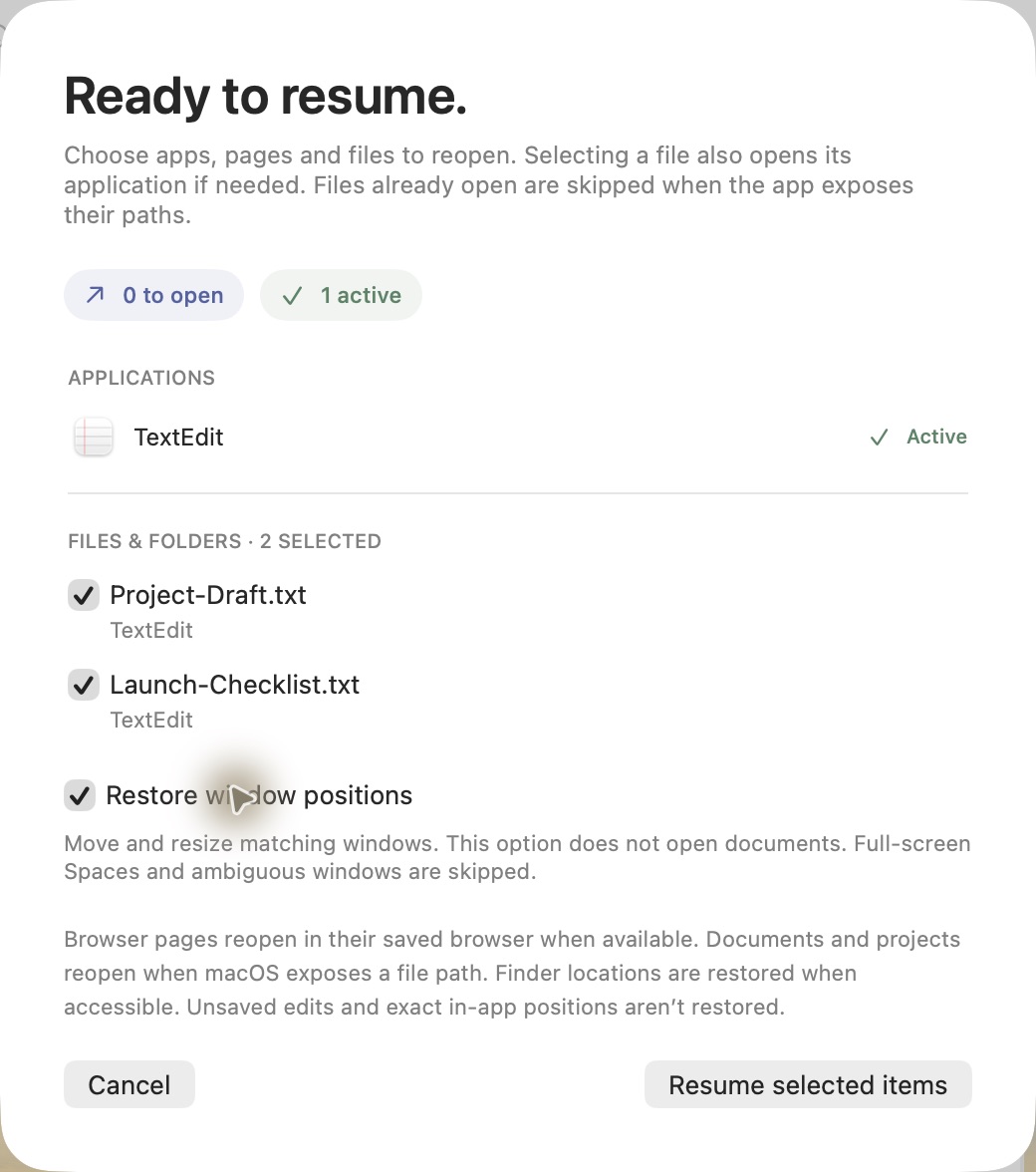
Capture limits: saved positions cover the Space visible on each display when you save. Other Spaces and full-screen Spaces are excluded. Moving matching windows during resume requires Accessibility access.
Restoring a checkpoint is an action you choose
This workflow uses manual restoration from a previously saved checkpoint. It does not assume Where Was I? automatically runs when your Mac wakes, and it cannot recover a layout you never captured.
Start with the same display setup you used when saving. If you regularly move between a laptop screen and a desk monitor, try each setup with your own apps before depending on the result. The saved screenshot can also help you recognise the arrangement you intended.
For the full save-and-resume sequence, see how to save and restore window positions. If the bigger problem is remembering what you were doing, read how to leave yourself a useful return checkpoint.