
Where Was I? / Mac workspace guides
Practical guides for interrupted work
How to organise apps across Mac Spaces
Give apps a desktop—and give each project a place to return to.
Coming soon · Free to try at launch. Get notified →
Assign an app to a Space from the Dock
To keep an app on a particular Mac desktop, switch to that desktop, Control-click the app’s Dock icon, choose Options, then This Desktop under Assign To. You need more than one Space for the assignment options.
This is useful when you want a stable home for an app. If you want to save the context of a project as well, keep a checkpoint with its apps, tabs, notes and next step.
Create desktops and put your apps on them
- Open Mission Control. Move the pointer to the top of the screen to see the Spaces bar.
- Add a desktop. Select the plus button, then open the new desktop.
- Move a window. In Mission Control, drag a window to the desktop you want to use.
- Assign an app. On its intended desktop, Control-click the Dock icon and choose Options → This Desktop.
Choose All Desktops for an app you want available everywhere, or None to remove the assignment. A full-screen app uses its own Space.
Mac instructions: Apple’s guide to working in multiple Spaces. Setting names can vary by macOS version.
Keep the project context with the workspace
Suppose a desktop contains a browser, an editor and your notes. The desktop groups those windows, but you may still need a reminder of which research mattered and what to do next.
In Where Was I?, choose the relevant project and select Save checkpoint. Keep the captured workspace together with a brief note: “The layout is approved; check the mobile navigation next.” When you return, review the checkpoint and choose which apps and tabs to reopen.
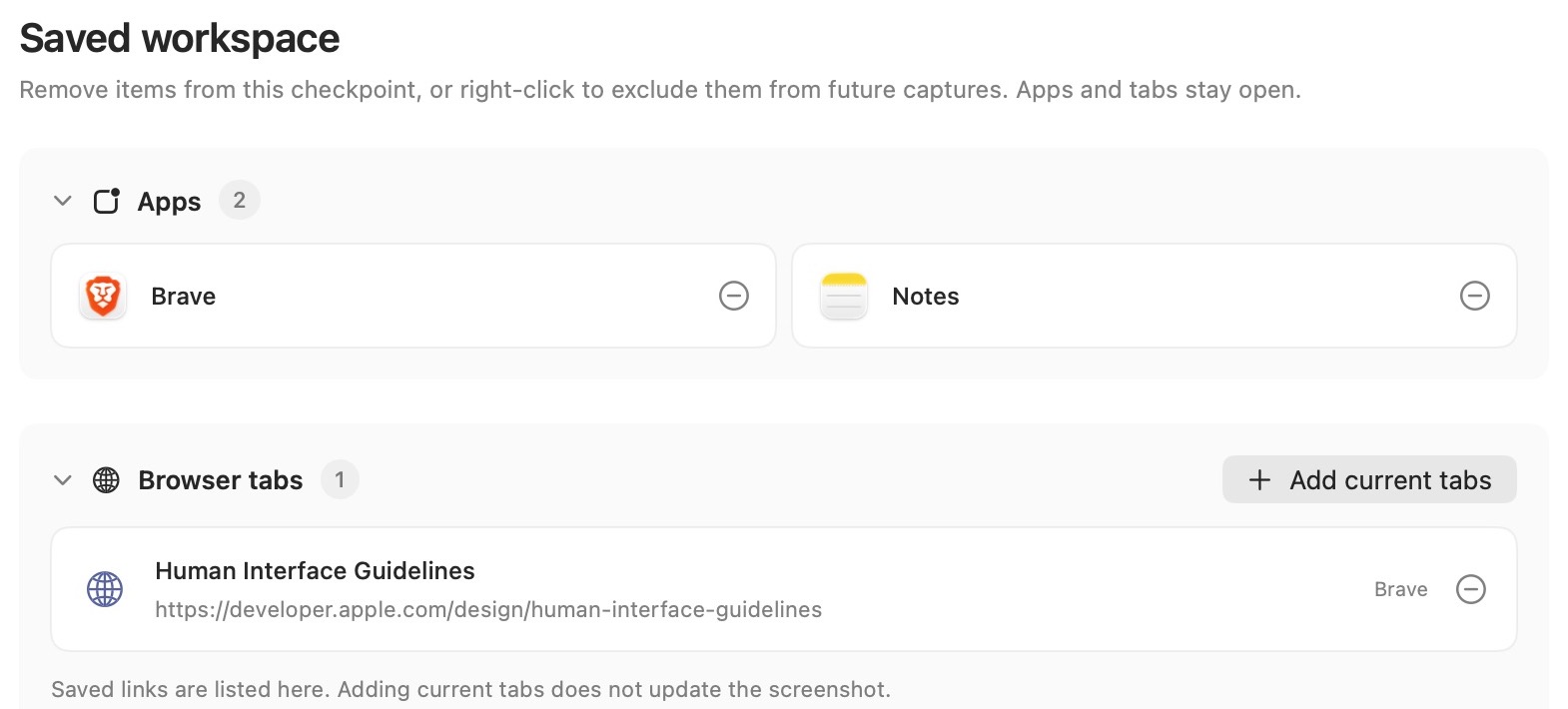
App assignment and saved checkpoints serve different purposes. Use macOS for the desktop assignment described above. Where Was I? saves window positions from the Space visible on each display; it does not recreate Spaces or restore windows across every Space.
Do you need a Spaces alternative?
Start with the problem you want to solve. For separate desktops and moving between them, try the built-in Spaces workflow. For a repeatable arrangement, read the window positions guide. For several projects that you pause and revisit, use a checkpoint to preserve the workspace and your place in the task.
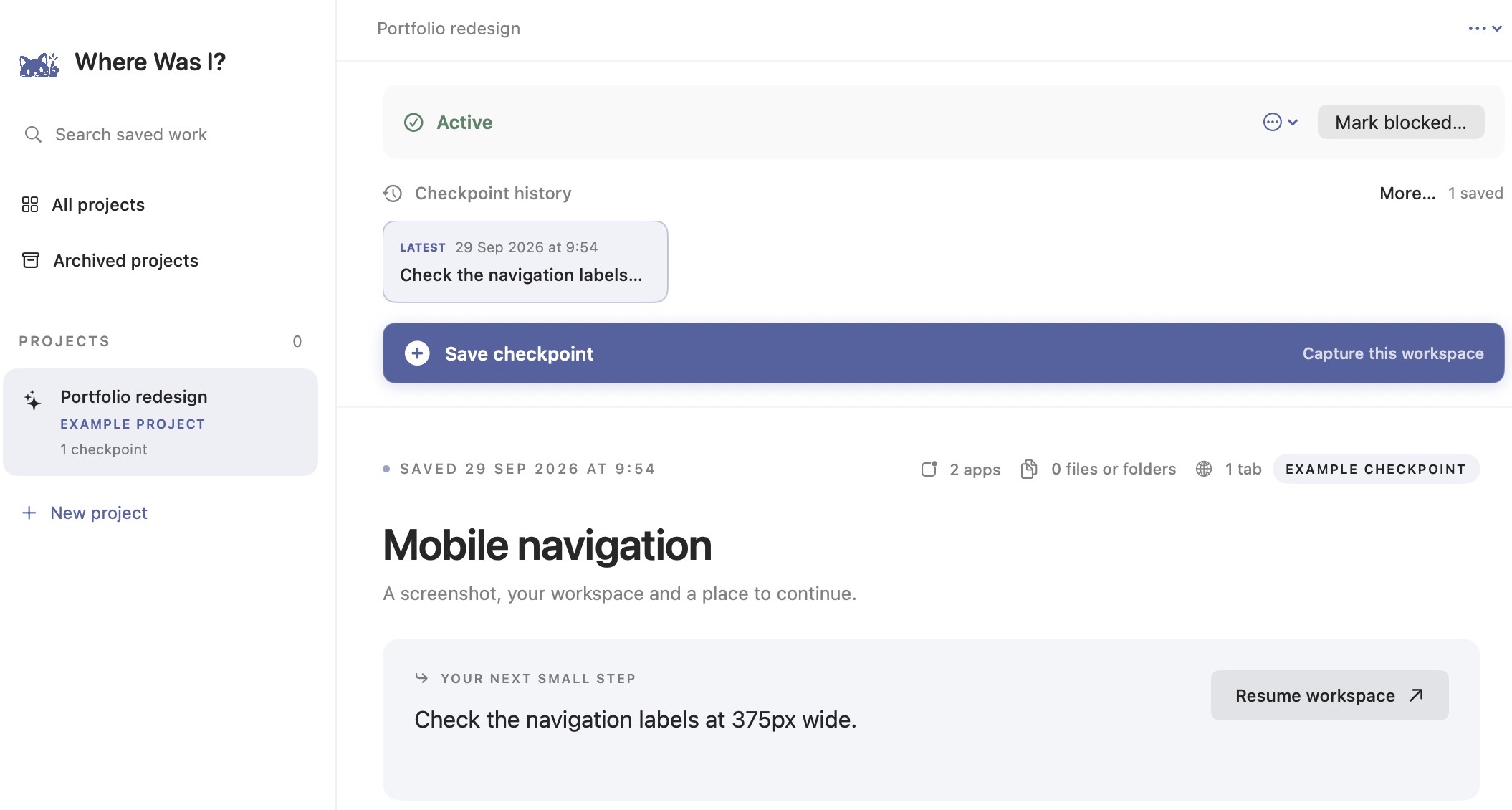
You can keep using Spaces while saving project checkpoints. Try a single project first: arrange the work, capture it, write the next action, then return through Resume workspace. For a fuller example, see switching projects without losing your place.